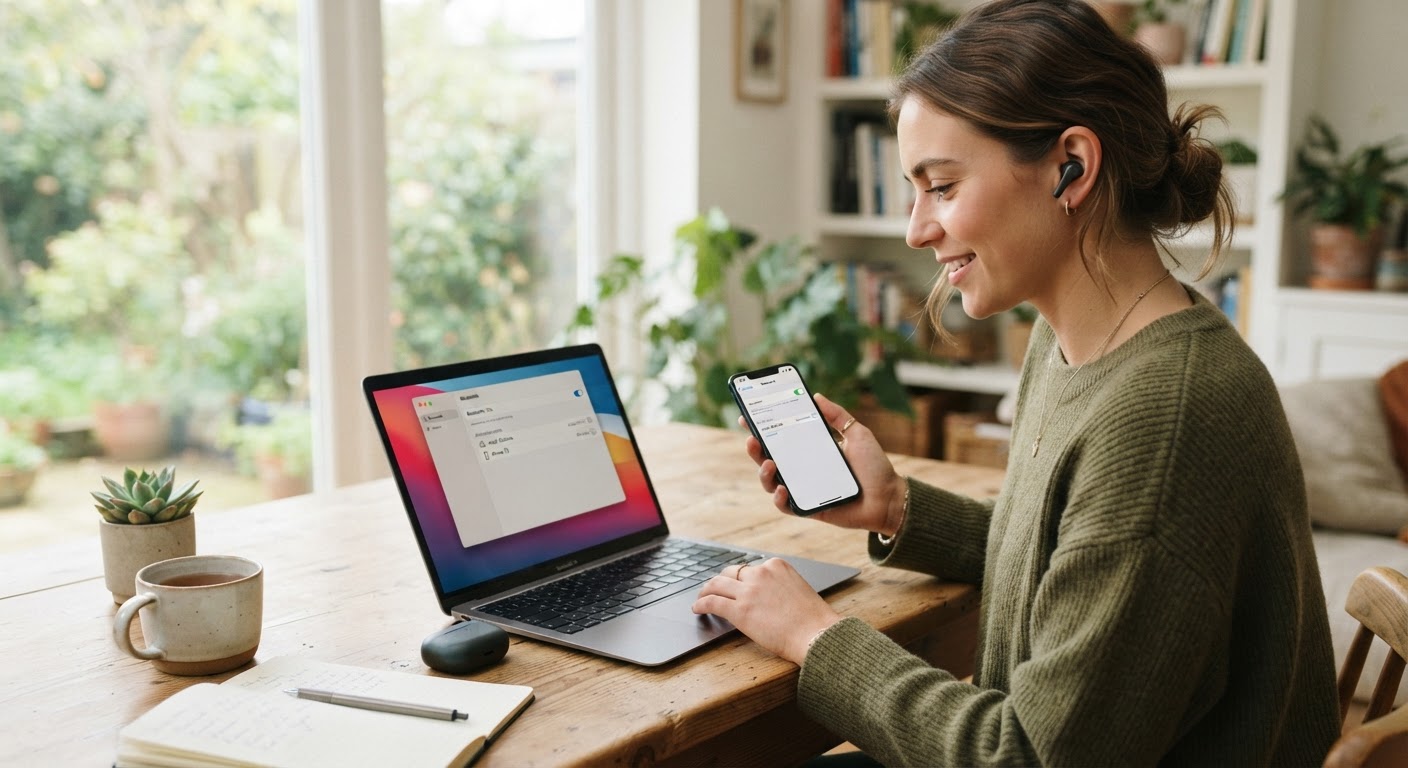
How to Set Up Bluetooth Multipoint on Your Wireless Earbuds
How to Set Up Bluetooth Multipoint on Your Wireless Earbuds
Setting up Bluetooth Multipoint on supported wireless earbuds allows you to enjoy uninterrupted audio switching between your phone, tablet, or laptop. Follow these step-by-step instructions to properly configure your multi-device setup.
If you want to review hardware requirements before starting, consult the main guide detailing wireless setup protocols.
Step 1: Pair Earbuds to Your First Device
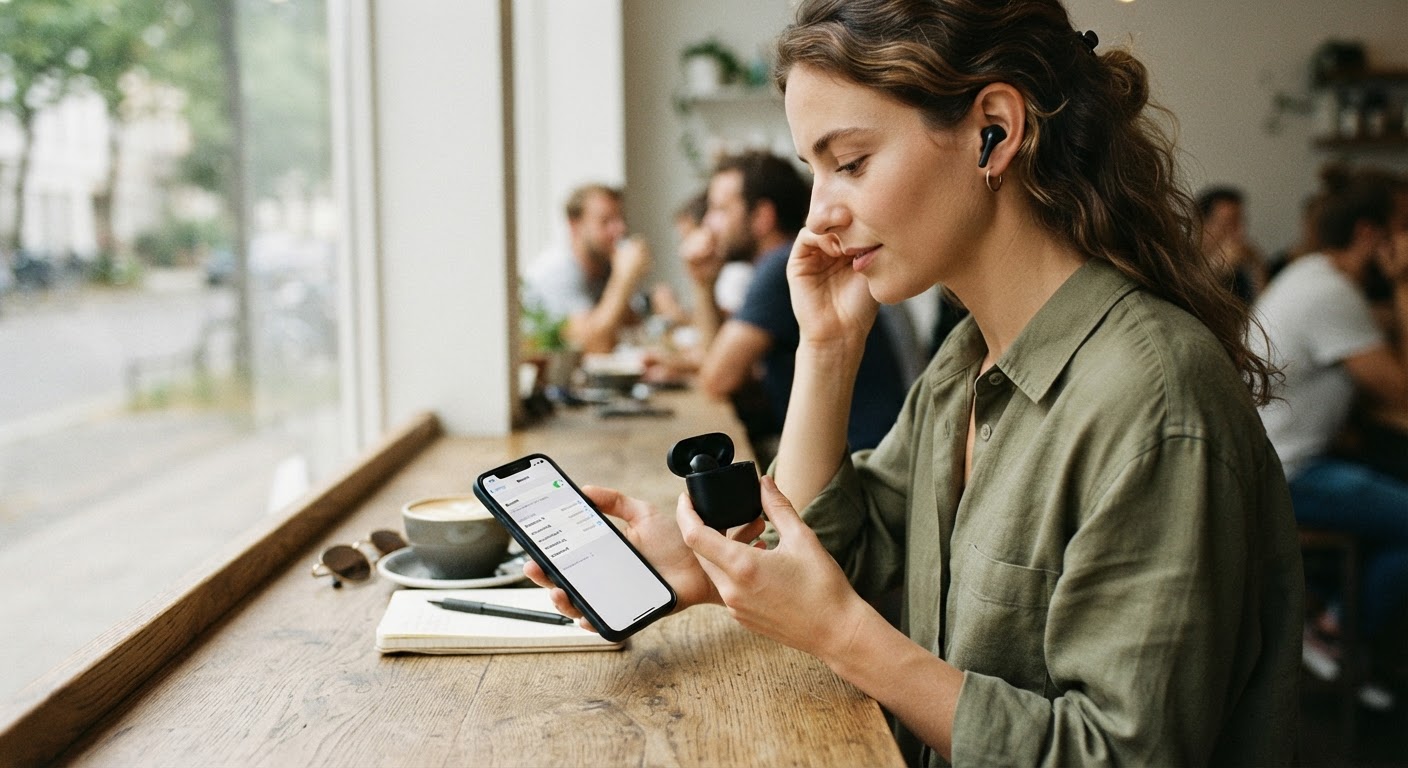
First, place your earbuds into pairing mode according to the manufacturer instructions. On your primary device (such as your smartphone), open the Bluetooth settings menu, locate your earbuds, and select them to complete the initial pairing process.
Step 2: Activate Pairing Mode for Secondary Device
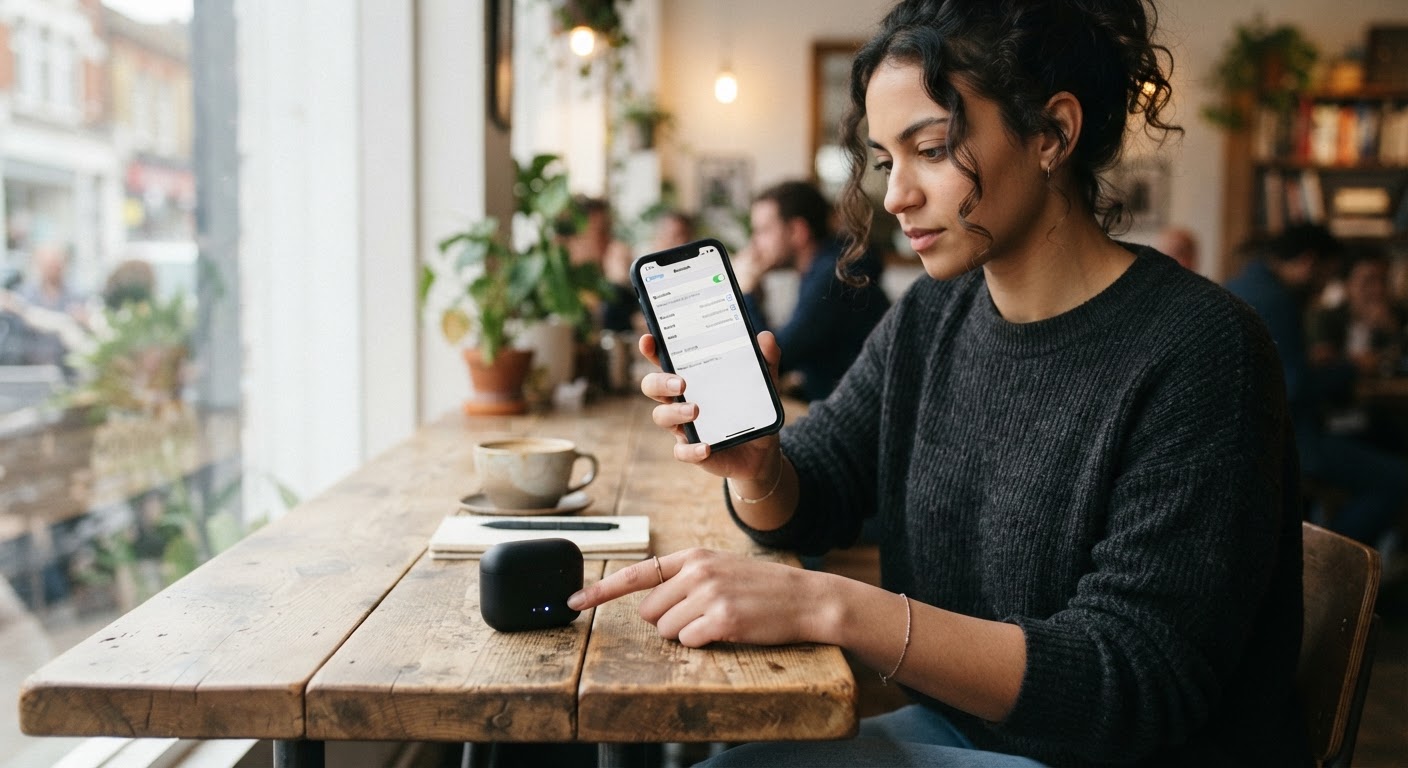
Once connected to your primary device, re-enter pairing mode on your earbuds. On many compact models like Noxpods, this can be initiated via touch controls or by temporarily disconnecting from the first device while keeping Bluetooth active.
Step 3: Connect Your Second Device
Open the Bluetooth settings menu on your secondary device (such as a laptop or tablet). Locate your earbuds in the list of available devices and tap to connect. Your earbuds will now register both host devices in their memory profile.Step 4: Test Automatic Audio Switching
Play an audio track on your primary device. Next, pause the audio and play a video on your secondary device. Your earbuds should automatically switch audio channels within a few seconds. When configured correctly with compact 3.3g earbuds, you can transition between tasks effortlessly throughout the day.Read the full guide: What Is Bluetooth Multipoint Technology? Complete Audio Guide